

Blog
Page Scripting in Business Central 29: record a test once, replay it after every update
Business Central updates itself twice a year, plus monthly minor updates. Someone has to check that the processes the business depends on still work afterwards, and in most companies that means a key user clicking through the same steps by hand every time. Page Scripting records those clicks once and replays them on demand. Microsoft announced it as generally available in version 29, so we tried it in a version 29.0 test environment.
Where to find it
Open the Settings cog and choose Page scripting. A pane opens on the right with Start new and Open. On our 29.0 build the menu still said “(Preview)” and the pane carried a Preview badge, despite the general availability announcement, so expect the label to catch up in a later update.
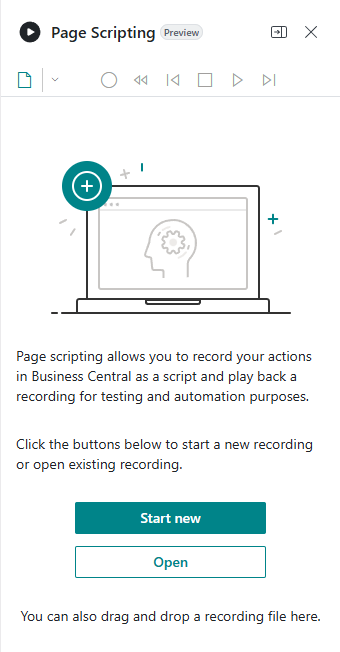
To record a user needs the PAGESCRIPTING - REC permission set, and to play back PAGESCRIPTING - PLAY.
Record, then add a check
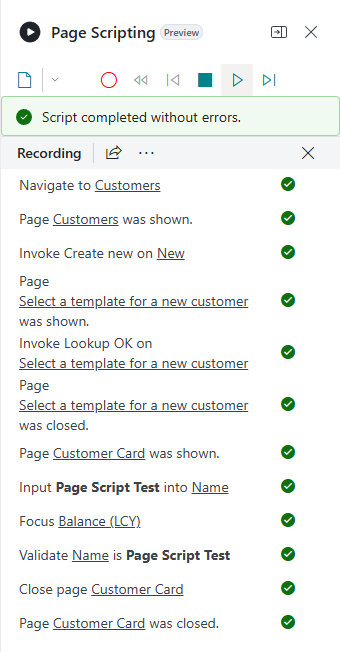
Press Start new and work as usual. Our test created a customer from a template, typed a name and closed the card. Every action and every page that opened became a readable step in the pane, twelve in all.
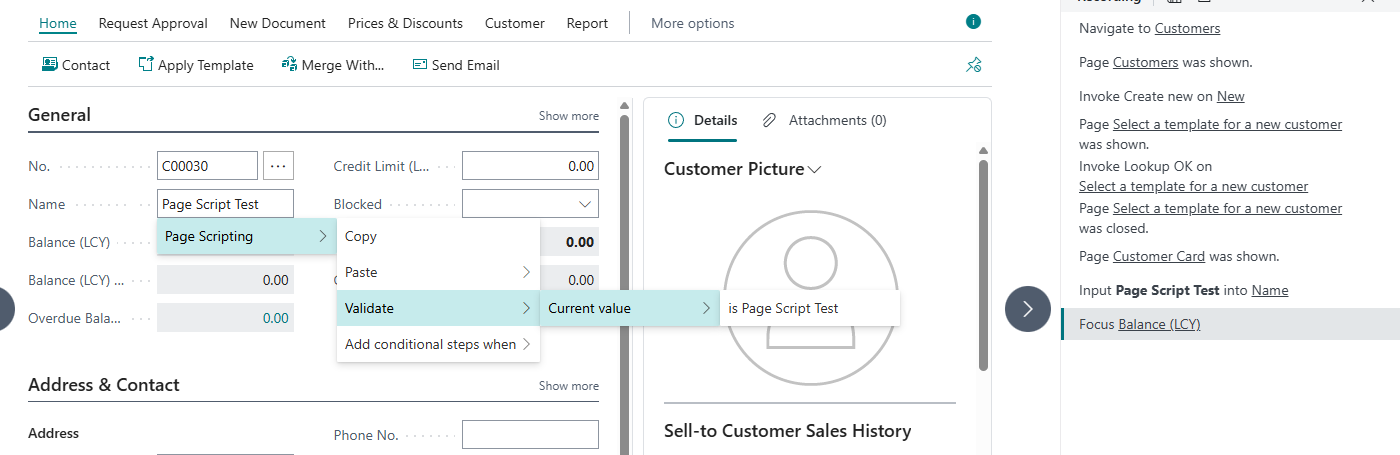
A recording only becomes a test once it checks something. Right-click a field, choose Page Scripting > Validate > Current value, and the current value becomes an expected result. In lists the same menu offers row counts, a “for each row” loop and conditional steps.
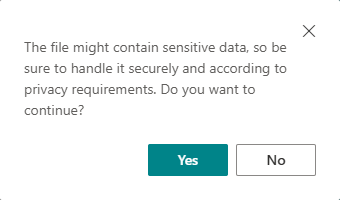
Saving produces a plain YAML file. Before the download, Business Central warns that the file might contain sensitive data, which is fair: it holds every value typed during the recording.
Replay: passed and failed
Open the file, press Play, and each step gets a green tick as it runs.
Then we broke it on purpose by changing the expected name in the file. The replay stopped at the check, marked it red and reported “Script failed.”
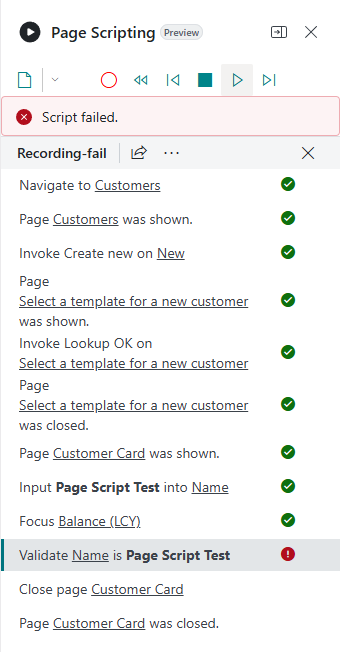
Two things to know from this. A replay does the real work: every run created another customer, so run scripts in a sandbox and design them to create their own data. And if you edit the YAML by hand, the step’s description is not updated with the value, so the pane can show the old text while checking the new one.
It survives a language switch
The file refers to pages and fields by their internal names, not by what is on screen. We replayed the English recording as a user with the Lithuanian interface, and it completed without errors. The tool itself is translated, so a key user can record in whatever language they work in.
And it runs without a person
Microsoft also publishes a standalone player, bc-replay, that replays the same files in a headless browser from a script or a build pipeline. We pointed it at our test environment with both files. The good script passed, the broken one failed with “Was expecting ‘Page Script Typo’ but got ‘Page Script Test’”, and the run ended in an error, which is exactly what a pipeline needs in order to stop. The whole run took about ten seconds and left a video of each test.
Where we would start
- Pick three processes that would hurt most if they broke, such as order to invoice, purchase receipt and a payment run, and record one script for each.
- Start every script from the role centre and let it create its own customer or item, so it does not depend on data that might change.
- Add at least one check per script. Without a validation step a recording only proves that the clicks still work.
- Run them in a sandbox after each update before users find the problem in production.
It needs no extension, no developer and no setup beyond the two permission sets. For the time it saves on every update, it is one of the most useful things in version 29.
Want help choosing and recording the scripts that cover your critical processes? Tell us your story and we will set them up with you.