

Blog
Who changed this? The Created/Modified by avatars in Business Central 29
“Who changed this customer?” usually means opening the record or the change log. Version 29 puts the answer on the list itself: a small avatar for the person who created each record and the person who last modified it. We tried it in a version 29.0 test environment with two named users.
Where to switch it on
Use the layout button in the top right of a list. Next to List there is a small arrow, and behind it the option Created/Modified by.

The choice is personal and per page: other users keep their own view, and each list has to be switched separately. We found the option on every list we tried, from customers and items to G/L entries.
What it shows
A narrow By column appears. One avatar means the same person created the record and changed it last; two avatars mean different people, creator first.
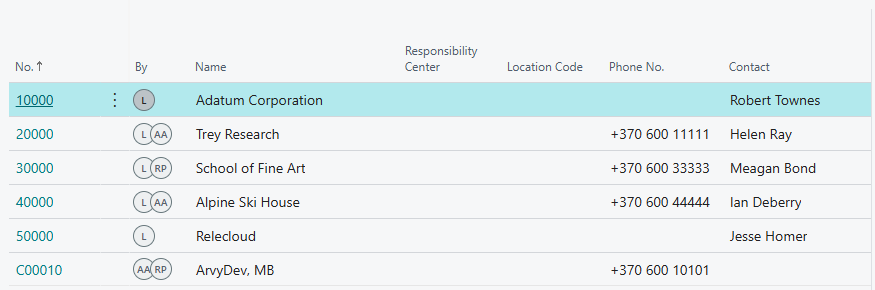
Hover over the avatars to see both names and timestamps.
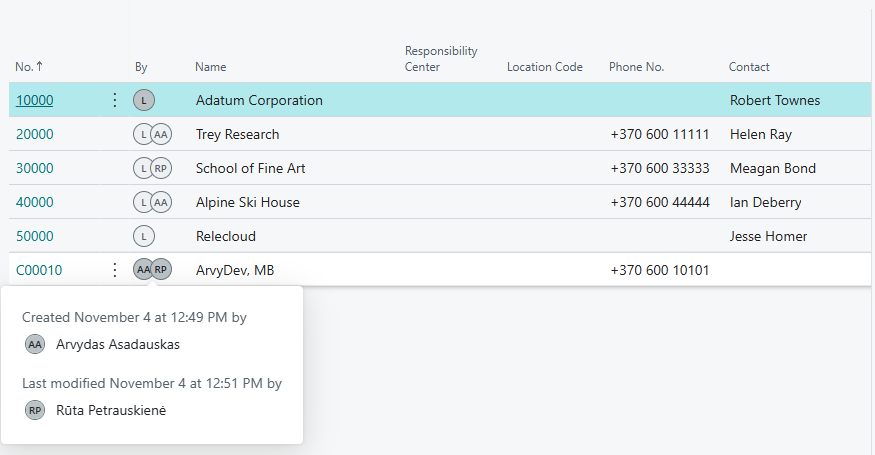
The avatars are initials, not photos. They come from the user’s Full Name, and when that is blank, from the login name. A service account without a full name shows up as a single meaningless letter, so fill in full names on the Users page before rolling this out.
Filtering by person
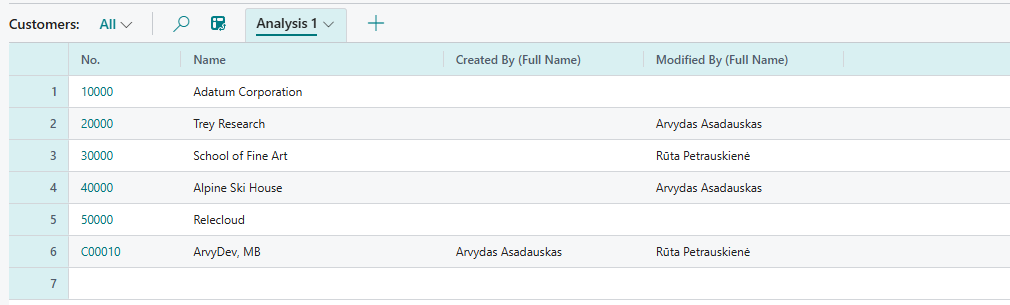
The By column cannot be sorted or filtered. Analysis mode can: version 29 adds the audit fields there, so you can add Created By and Modified By (full name or user name) and the matching dates as columns, then filter or group by them.
Worth knowing
- Leavers keep their name. A user who has signed in cannot be deleted, only disabled, and disabled users still show by name.
- Only two people are shown: the creator and the last modifier. For the full history of changes, use the change log, switched on before the changes happen.
- It is not about who viewed a record. For that side of version 29, see our post on the Recent button and the Recent Record table.
It needs no setup and touches no data. Fill in the full names, show users where the switch is, and a daily trip into the record card goes away.
Want your users’ names and roles in order before version 29 shows them on every list? Tell us your story and we will help you tidy it up.